Stop Fake Updates: Verify Software Before It Runs
Attackers mimic legitimate update prompts to bypass your defenses, turning routine maintenance into a direct path for system compromise.
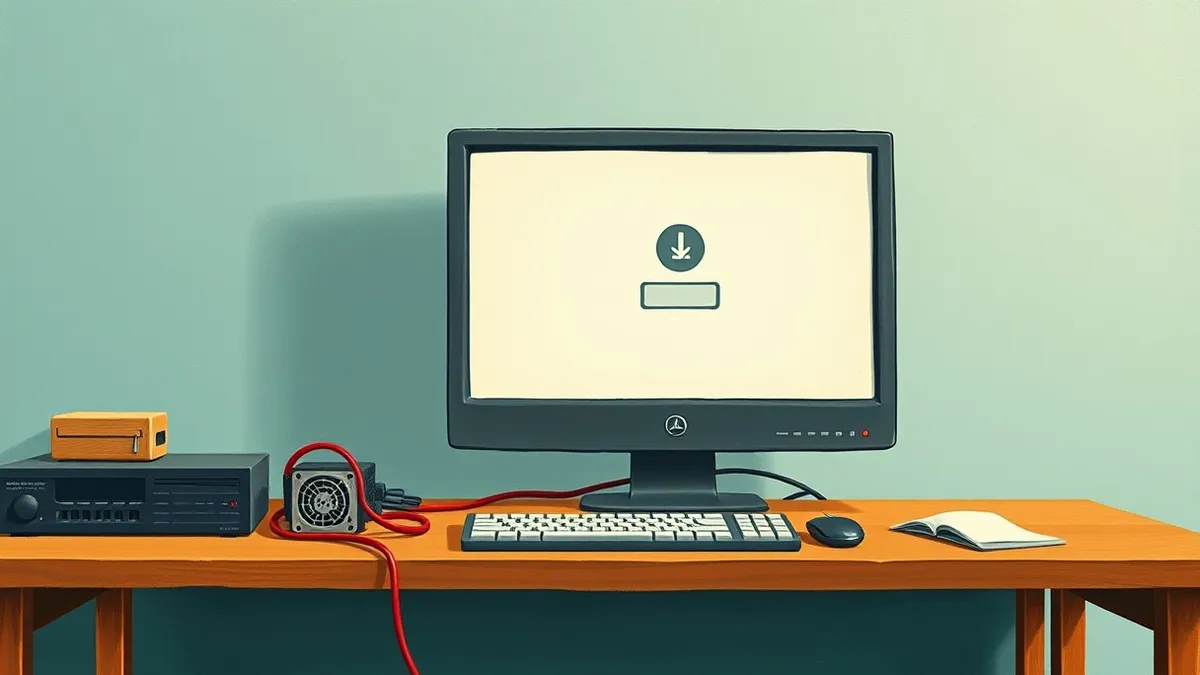
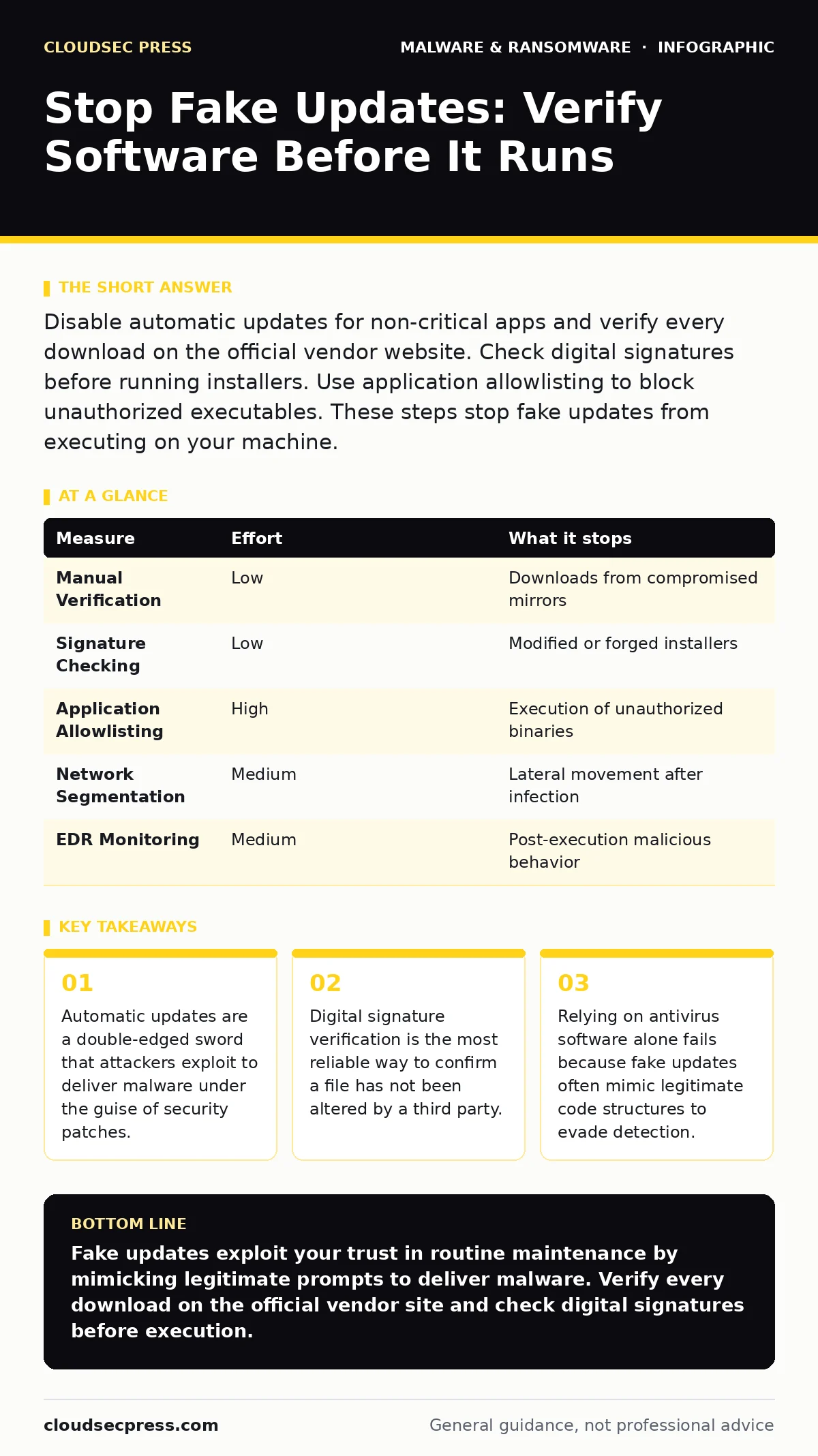
Disable automatic updates for non-critical apps and verify every download on the official vendor website. Check digital signatures before running installers. Use application allowlisting to block unauthorized executables. These steps stop fake updates from executing on your machine.
The Update Trap Mechanism
You expect software updates to improve security. Attackers know this expectation creates a blind spot. They create convincing replicas of update prompts that appear when you launch an application. These prompts look identical to the real thing, using the same colors, logos, and urgent language. You click "Update Now," and the installer downloads.
The installer is not a patch. It is a payload. It might install ransomware, a remote access trojan, or a cryptocurrency miner. The damage occurs because you authorized the execution. The operating system trusts you to make the final decision. When you double-click an executable, you grant it permission to modify your system. Fake updates exploit this trust by presenting a false sense of necessity.
The Cost of Automation
Many users enable automatic updates for every application to stay secure. This setting removes friction, but it also removes oversight. If an attacker compromises a third-party download site or a mirror server, automatic updates will pull the malicious version. You never see the prompt. You never have a chance to verify the source. The malware installs silently in the background.
This is why application allowlisting is more effective than automatic updates for critical systems. Allowlisting permits only pre-approved executables to run. If a new file appears, even if it looks like an update, the system blocks it. This approach shifts the burden from the user to the administrator. It requires initial setup but prevents unauthorized code from executing.
Verify Before You Trust
The most practical defense is manual verification. When you receive an update notification, do not click the link provided in the prompt. Instead, open your web browser and navigate directly to the vendor’s official website. Download the update from there. Compare the file size and version number. If the numbers do not match, do not proceed.
You should also check the digital signature. A digital signature is a cryptographic stamp that proves the file came from the stated publisher and has not been altered. Right-click the installer file, select Properties, and look for the Digital Signatures tab. If the signature is missing, invalid, or belongs to an unknown entity, delete the file. This step takes ten seconds but stops most fake updates.
| Measure | Effort | What it stops |
|---|---|---|
| Manual Verification | Low | Downloads from compromised mirrors |
| Signature Checking | Low | Modified or forged installers |
| Application Allowlisting | High | Execution of unauthorized binaries |
| Network Segmentation | Medium | Lateral movement after infection |
| EDR Monitoring | Medium | Post-execution malicious behavior |
The Illusion of Antivirus Protection
You might assume your antivirus solution will catch a fake update. It often does not. Modern malware kits use techniques to evade signature-based detection. They may use packers to hide their code or mimic the behavior of legitimate system processes. If the fake update looks like a real Windows component, the antivirus may let it pass.
This is why behavioral monitoring is necessary. Endpoint detection and response (EDR) solutions watch for suspicious actions after a program starts. If an update installer tries to disable security tools or create hidden accounts, the EDR can block it. However, EDR is reactive. It stops the damage after the file runs. Prevention is always superior to detection.
Disable Auto-Updates for Non-Critical Apps
For operating systems, automatic updates are generally safe because the distribution channel is secure. For third-party applications, the risk is higher. These apps often use third-party update servers that are easier to compromise. Disable automatic updates for browsers, media players, and office suites. Check for updates manually once a week.
This small change forces you to pause. That pause is where security happens. You check the source. You verify the signature. You ensure the update is necessary. This habit breaks the automation loop that attackers rely on. It turns a reflexive action into a deliberate security check.
See also: How Backdoors Work: Step-by-Step Mechanisms and Defense Points · SEO Poisoning: How Hackers Hijack Search Results to Infect PCs
Beware of Browser-Based Scams
Not all fake updates come from installed software. Some appear in your web browser. These are often scareware tactics. A pop-up claims your browser is out of date or your system is infected. It urges you to download a fix. These scams do not require an existing application. They target your anxiety.
These scams often redirect you to a download page. The file might be a potentially unwanted program (PUP) that installs adware. It might be a malware dropper that installs a loader. A loader is a small program that fetches and runs the main malware payload from the internet. This separation makes detection harder. The initial download looks harmless. The real threat arrives later.
The Role of Least Privilege
Even if a fake update bypasses verification, its impact is limited by user permissions. If you run your daily tasks as a standard user, not an administrator, the malware cannot install itself in system directories. It cannot modify critical registry keys. It cannot disable security services.
This is the principle of least privilege. You only have the permissions necessary to do your job. If a fake update tries to install a rootkit, it fails because it lacks admin rights. You will see an error message. This message is a warning sign. It tells you something is wrong. Do not click "Yes" to elevate privileges unless you are certain of the action.
What Does Not Work
Relying on email attachment scanning is useless against fake updates. These attacks often do not come via email. They come from compromised websites or misleading ads. Blocking all executables at the network perimeter is also impractical. Many legitimate tools require executable files. You must allow them to function.
Another common failure is ignoring digital certificates. Users often see a warning about an unknown publisher and click "Run Anyway." This action explicitly tells the system to ignore the security check. It is the equivalent of opening the door for the attacker. Never bypass certificate warnings for software you did not personally request.
Checklist for Today
Start with these three actions. They require minimal time but significantly reduce your exposure.
- Disable automatic updates for all third-party applications.
- Enable digital signature verification in your operating system settings.
- Create a standard user account for daily tasks and reserve admin rights for maintenance.
These steps create a barrier between you and fake updates. They force verification and limit damage. Consistency is key. Make these checks part of your routine. Security is not a product you buy. It is a process you follow.
Key takeaways
- Automatic updates are a double-edged sword that attackers exploit to deliver malware under the guise of security patches.
- Digital signature verification is the most reliable way to confirm a file has not been altered by a third party.
- Relying on antivirus software alone fails because fake updates often mimic legitimate code structures to evade detection.
Fake updates exploit your trust in routine maintenance by mimicking legitimate prompts to deliver malware. Verify every download on the official vendor site and check digital signatures before execution.
Frequently asked questions
How do I know if an update prompt is real?
Real update prompts appear within the application interface or system tray, not as pop-up windows in your browser. Always navigate to the vendor's official site to verify.
Can antivirus software detect fake updates?
Antivirus software may detect known malware, but it often misses new or customized fake updates that mimic legitimate code. Behavioral monitoring and manual verification are more reliable.
Why should I disable automatic updates for third-party apps?
Third-party update servers are more vulnerable to compromise than official OS channels. Disabling auto-updates forces manual verification, preventing the silent installation of malicious payloads.
What is a digital signature and why does it matter?
A digital signature proves the software comes from the stated publisher and has not been altered. Checking signatures ensures the file is authentic and has not been tampered with by attackers.
How this guide was produced: written by the CloudSec Press editorial team with AI assistance, checked against the public references listed below, and reviewed when the facts change. See our editorial policy or report an error.