Detect Scareware: Signals in Logs, Behavior, and Blind Spots
Scareware often masquerades as legitimate system diagnostics, hiding its malicious intent behind standard Windows processes and benign-looking network traffic.
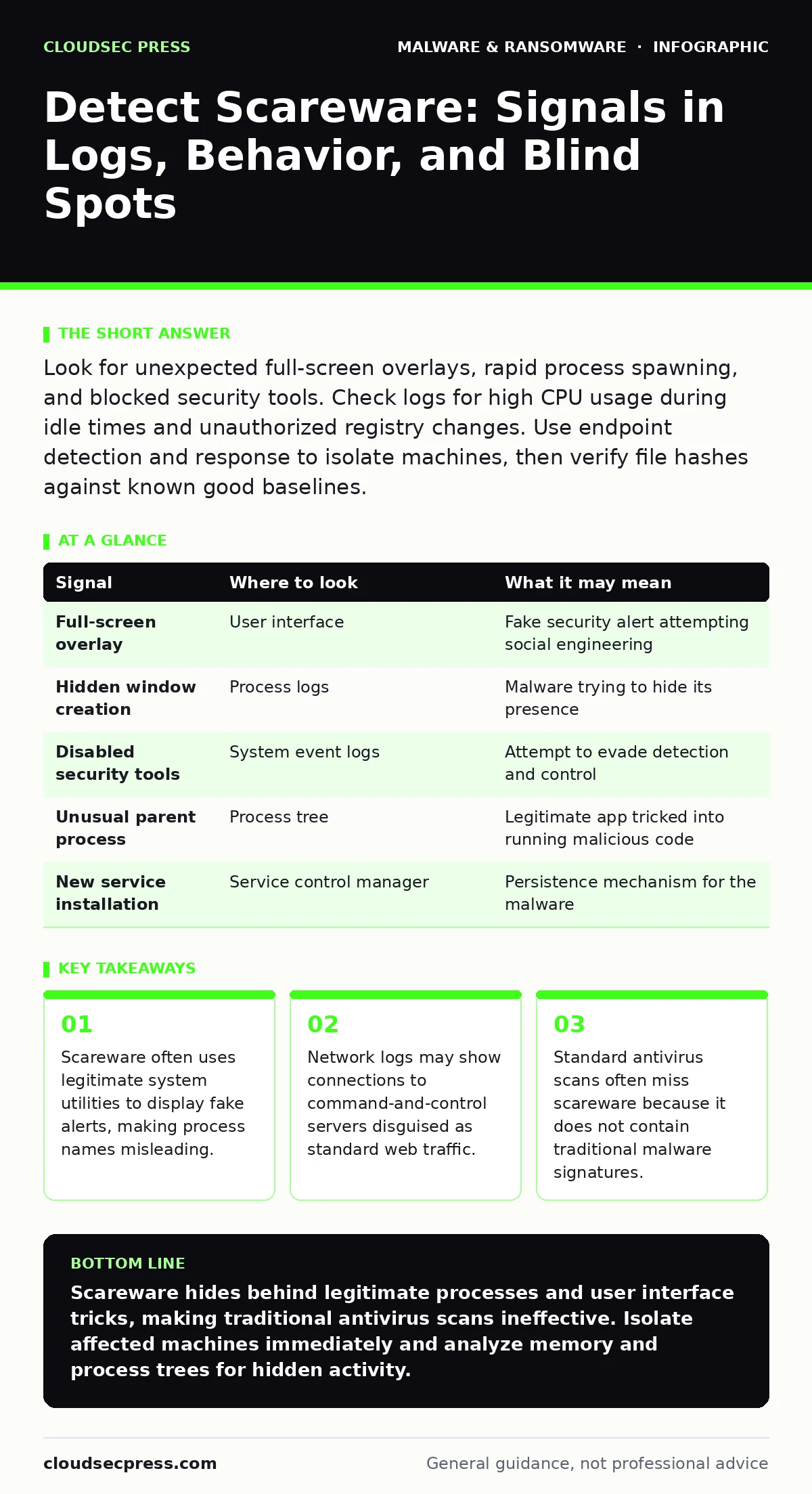
Look for unexpected full-screen overlays, rapid process spawning, and blocked security tools. Check logs for high CPU usage during idle times and unauthorized registry changes. Use endpoint detection and response to isolate machines, then verify file hashes against known good baselines.
The Visual Deception of Fake Alerts
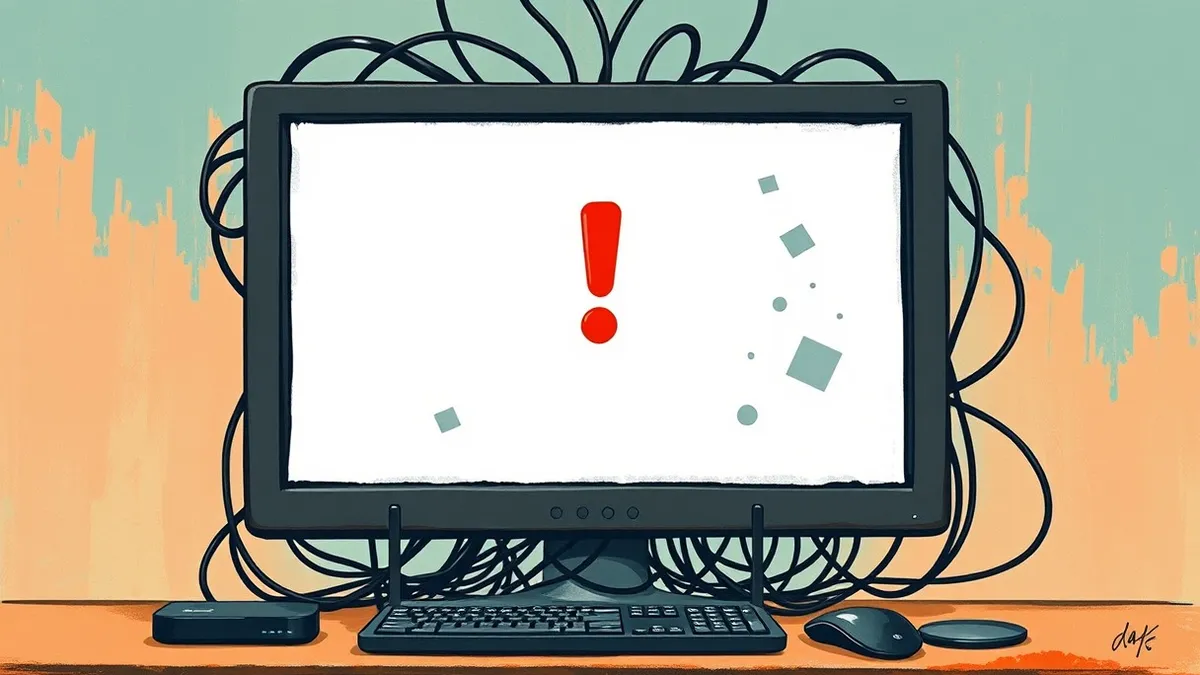
Scareware relies on psychological pressure rather than technical sophistication. It presents a full-screen overlay that mimics the operating system’s security dialogs. You see urgent warnings about virus infections or system failures. The design copies the color scheme, fonts, and layout of genuine system alerts.
The goal is to bypass your rational judgment. Fear triggers a fight-or-flight response. You click the button to "fix" the problem. This action installs the actual payload or collects your payment information. The overlay is often just a window with borders disabled. It sits on top of every other application.
Process Behavior and Parent-Child Chains
The malware does not always run as a suspicious executable. It often injects code into legitimate system processes. This technique, known as process injection, hides the malicious activity under the umbrella of trusted software. You might see explorer.exe or svchost.exe behaving strangely.
Check the parent-child relationships in your process tree. A web browser spawning a command prompt is unusual. A media player launching a system configuration tool is a red flag. These chains indicate that a benign application was tricked into executing malicious code.
Endpoint detection and response (EDR) platforms excel at tracking these relationships. They map the lineage of every running process. If a process has no clear parent or an unexpected one, it warrants investigation. Do not rely solely on the process name. Attackers rename their files to match system utilities.
Network Traffic Anomalies
Scareware must communicate with its controller. It sends data about your system and receives instructions. This traffic often looks like normal web browsing. The domain names may be newly registered or use fast-flux DNS. This technique rotates IP addresses to avoid blacklisting.
Look for outbound connections to non-standard ports. HTTPS traffic is common, but the certificate may be self-signed or invalid. Check for high volumes of data leaving the machine during idle hours. This could indicate the exfiltration of system information.
Imagine a scenario where a machine suddenly starts querying a domain that resembles a popular search engine. The spelling is slightly off. This is a common tactic to blend in with normal traffic. Your firewall logs will show these connections. Correlate them with internal process activity.
Log Evidence in System and Security Events
Windows Event Logs contain valuable clues. Look for Event ID 4688, which logs process creation. Filter for commands that launch hidden windows or disable security features. Event ID 7045 logs service installations. Scareware may install a persistent service to restart after a reboot.
Check for Event ID 1102, which indicates clearing of audit logs. An attacker trying to hide their tracks will delete evidence. This action is itself a strong indicator of compromise. Also monitor for Event ID 4719, which logs the audit policy change. This allows the attacker to stop recording their activities.
Common Blind Spots in Detection
Most teams focus on file hashes and known signatures. Scareware evades this by using fileless techniques. It runs entirely in memory. It leaves no executable on the disk. Traditional antivirus software scans files on the disk. It misses what is happening in RAM.
Another blind spot is the user interface layer. Security tools monitor processes and network traffic. They rarely analyze the graphical output. A full-screen fake alert is invisible to most security agents. You need human observation or specialized UI monitoring to catch this.
Suppose your endpoint detection and response system shows no alerts. The machine appears clean. Yet users report strange pop-ups. The issue is likely in the rendering layer. The malicious code is drawing a fake window. It is not executing a traditional payload.
See also: Ransomware Recovery Plans: 8 Practices for Downtime Reduction · 6 Common Mistakes That Leave Your System Open to Bootkits
The Role of Attack Surface Reduction Rules
Attack surface reduction rules can limit the damage. These rules restrict which applications can execute scripts or launch children. For example, you can block Office applications from creating child processes. This prevents a macro from launching a downloader.
Implement rules that block executable files from running in temporary directories. Scareware often drops its payload in temp folders. Blocking execution here stops the chain. Also restrict PowerShell execution. Many loaders use PowerShell to hide their activity.
These rules are not a silver bullet. They can break legitimate workflows. Test them in a controlled environment first. Balance security with usability. A rule that blocks too much will cause users to bypass it.
| Signal | Where to look | What it may mean |
|---|---|---|
| Full-screen overlay | User interface | Fake security alert attempting social engineering |
| Hidden window creation | Process logs | Malware trying to hide its presence |
| Disabled security tools | System event logs | Attempt to evade detection and control |
| Unusual parent process | Process tree | Legitimate app tricked into running malicious code |
| New service installation | Service control manager | Persistence mechanism for the malware |
Integrating with Existing Defenses
Scareware detection requires a layered approach. You cannot rely on a single tool. Combine endpoint detection and response with user training. Teach users to recognize the visual cues of fake alerts.
Monitor for behavioral anomalies. A sudden spike in CPU usage or network activity is suspicious. Correlate this with user reports. If multiple users report similar issues, it is likely a coordinated attack.
Review your logging policies. Ensure you are capturing process creation, service changes, and audit log clearings. Store these logs securely. Immutable backups can protect your log data from tampering. This ensures you have evidence for forensics.
Next Steps for Investigation
When you suspect scareware, isolate the machine immediately. Disconnect it from the network. This prevents data exfiltration and lateral movement. Do not shut it down. The memory contains evidence.
Capture a memory dump. Analyze it for injected code and hidden processes. Check the browser history for recently visited sites. Look for downloads in the temporary folders.
Document the incident. Record the time, the symptoms, and the actions taken. This helps in understanding the attack vector. Use this data to improve your detection rules.
Key takeaways
- Scareware often uses legitimate system utilities to display fake alerts, making process names misleading.
- Network logs may show connections to command-and-control servers disguised as standard web traffic.
- Standard antivirus scans often miss scareware because it does not contain traditional malware signatures.
Scareware hides behind legitimate processes and user interface tricks, making traditional antivirus scans ineffective. Isolate affected machines immediately and analyze memory and process trees for hidden activity.
Frequently asked questions
How do I know if a pop-up is real or scareware?
Real system alerts never ask for payment or personal information. They also provide options to close the window or ignore the warning.
Can scareware steal my passwords?
Yes. Once installed, it can act as a keylogger or inject code into your browser to capture credentials.
Does a firewall stop scareware?
A firewall can block communication with command-and-control servers, but it cannot stop the initial social engineering trick or local execution.
How long does scareware stay on a system?
It can persist indefinitely if it installs a service or modifies startup entries. Regular reboots may clear some fileless variants, but not all.
How this guide was produced: written by the CloudSec Press editorial team with AI assistance, checked against the public references listed below, and reviewed when the facts change. See our editorial policy or report an error.