Implement Attack Surface Reduction Rules: A Step-by-Step Plan
Attack Surface Reduction rules block exploit techniques at the OS kernel level, stopping malware before it can establish persistence or execute payloads.

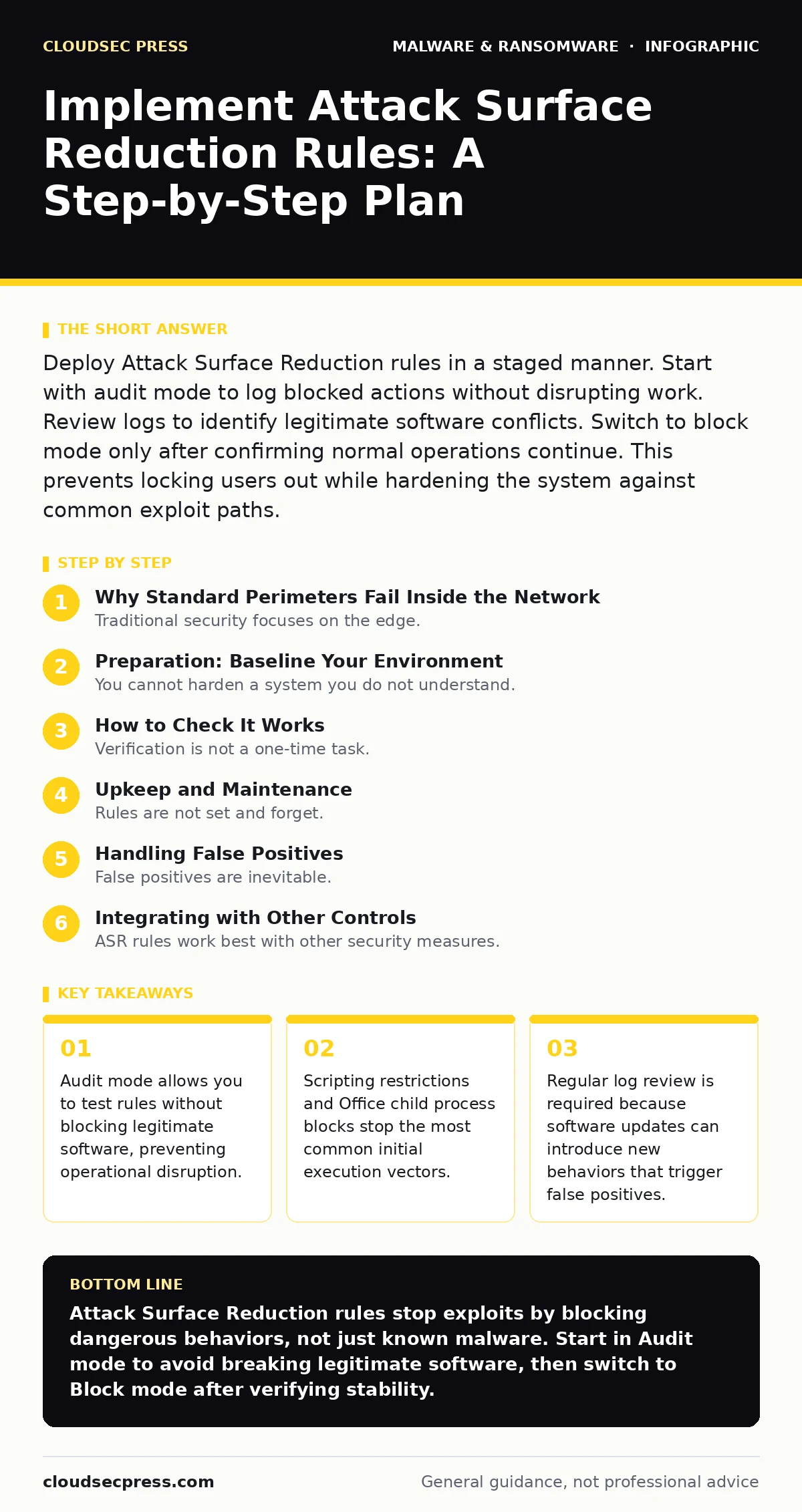
Deploy Attack Surface Reduction rules in a staged manner. Start with audit mode to log blocked actions without disrupting work. Review logs to identify legitimate software conflicts. Switch to block mode only after confirming normal operations continue. This prevents locking users out while hardening the system against common exploit paths.
Why Standard Perimeters Fail Inside the Network
Traditional security focuses on the edge. Firewalls and email filters catch threats before they reach your devices. However, once a file lands on a desktop, the perimeter is breached. Attackers use the operating system itself to execute code. Attack Surface Reduction (ASR) rules change this dynamic. They sit within the Windows Defender Antivirus engine. They monitor process behavior in real time. Instead of waiting for a signature match, they block actions that look like exploitation. This shifts defense from static detection to dynamic prevention.
Imagine a user clicks a link in a phishing email. The email scanner missed it. The user downloads a script. Traditional antivirus might wait for the script to run and match a known pattern. ASR rules can block the script engine from running in the first place. This stops the attack chain at the execution stage. It reduces the window of opportunity for malware.
Preparation: Baseline Your Environment
You cannot harden a system you do not understand. Before enabling any restrictions, you must know what your users do. Enable ASR rules in Audit mode first. This mode logs attempts to perform restricted actions but allows them to pass. It creates a record of what gets blocked without causing errors. You need this data to distinguish between malicious activity and normal work.
Check your deployment method. Most organizations use Group Policy or Microsoft Intune to manage these settings. Ensure your management console can push updates to all endpoints. Verify that telemetry data flows back to your central monitoring dashboard. If you cannot see the logs, you cannot verify the rules. Read our guide on endpoint detection and response (EDR) to ensure your logging infrastructure is ready for this volume of data.
Step 1: Enable Office Application Restrictions
Start with the applications users interact with most. Office documents are a primary vector for malicious code. Enable the rule that prevents Office applications from creating child processes. This stops Excel or Word from launching PowerShell, Command Prompt, or other executables. Many attackers use macros to trigger these launches. Blocking the parent-child relationship breaks this chain.
To verify this works, open the security logs. Look for entries where an Office app attempted to spawn a command shell. In Audit mode, you will see these attempts logged. Check if any legitimate business tools rely on this behavior. Some legacy reporting tools may trigger these alerts. If you see frequent alerts from known software, you must create an exclusion for that specific application path. Do not disable the rule globally for a single edge case.
Step 2: Block Scripting Engines
Scripts are flexible and often lack the metadata that antivirus engines use for identification. Enable the rule that blocks JavaScript or VBScript from launching via downloaders. This prevents web browsers from executing scripts downloaded from the internet. It also blocks PowerShell from running if it is invoked by a script engine. This targets drive-by downloads and initial access kits.
Verification requires checking the audit logs for blocked script executions. You will likely see alerts from browsers or download managers. Review the source paths. If the script came from a trusted internal repository, you may need to whitelist that folder. Be careful with internal development tools. Developers often use scripts for automation. Ensure your policy allows their specific build environments to function.
Step 3: Restrict Process Injection and Creation
Process injection is a technique where malware injects code into a legitimate running process. This hides the malicious activity. Enable the rule that prevents Office applications from injecting code into other processes. Also, enable the rule that blocks all Office applications from creating child processes if you did not do so in Step 1. This is a broader restriction.
Check your logs for injection attempts. These are often silent in normal operation. If you see alerts, investigate the target process. Was it a browser? A text editor? If the injection attempt came from a known vulnerability exploit, the rule worked. If it came from a legitimate plugin, you have a conflict. Document these conflicts. You may need to update the software or adjust the rule scope.
Step 4: Block Webshell Creation
Webshells are scripts that allow remote control of a server. Enable the rule that blocks process creation from web servers. This prevents IIS or Apache from launching system commands. This protects your internal servers from compromise via web vulnerabilities.
Verify by reviewing logs on your web server hosts. You should see attempts to launch command prompts or PowerShell from the web server process. If you see none, you may not be under active attack, or the rule is not logging correctly. Test with a harmless script to ensure logging is active.
How to Check It Works
Verification is not a one-time task. You must validate that the rules are active and effective. Use the Group Policy Results tool to confirm the policies are applied to the target machines. Check the Windows Event Log for Event ID 1121. This event indicates an ASR rule triggered. In Audit mode, the status will show "Allowed" but with a rule identifier. In Block mode, it will show "Blocked".
Create a test file. Use a harmless PowerShell script that attempts to run a command. Execute it from a Word document macro. Check the logs. You should see a block event if the rule is active. This confirms the mechanism is functional. Do not use real malware for testing. It poses unnecessary risk.
Upkeep and Maintenance
Rules are not set and forget. Software changes. New applications are installed. You must review logs weekly. Look for new patterns of blocked activity. Identify if legitimate software is being hindered. Update your exclusions carefully. An exclusion is a hole in your defense. Justify every exclusion with a business requirement.
Keep your definitions updated. ASR rules rely on the underlying antivirus engine. Ensure your endpoints are receiving the latest security intelligence. Review our guide on ransomware incident response to understand how these rules fit into your broader recovery plan. They prevent infection, but they do not clean it.
Also, consider the threat of fake software updates. Users may download installers that bypass these rules if the installer is signed. Ensure your application control policies work alongside ASR rules. This creates a layered defense.
Handling False Positives
False positives are inevitable. A legitimate tool may behave like malware. When this happens, do not disable the rule. Instead, create a targeted exclusion. Exclude the specific file path or publisher ID. This maintains the protection for other applications. Document the reason for the exclusion. Review it quarterly. Remove exclusions for software that is no longer in use.
If a user reports an error, check the logs first. Confirm the rule triggered. Then investigate the application. Is it a known business tool? If yes, exclude it. If no, investigate further. It might be a new threat.
See also: Ransomware Recovery Plans: 8 Practices for Downtime Reduction · 6 Common Mistakes That Leave Your System Open to Bootkits
Integrating with Other Controls
ASR rules work best with other security measures. They complement email attachment scanning by catching what slips through. They provide a second layer of defense. They also help mitigate macro malware by blocking the execution chain.
However, they do not replace good hygiene. Users must still be trained. They must recognize scareware attempts. They must not run unknown executables. ASR rules reduce the impact of user error, but they do not eliminate the need for awareness.
Consider the threat of firmware malware. ASR rules operate at the OS level. They cannot protect the BIOS or UEFI. Ensure your firmware is updated and secured separately.
Also, be aware of potentially unwanted programs. These may not be malicious but can clutter the system. ASR rules may not block them if they do not exhibit exploit behavior. Use application allow-listing to control these.
Final Verification Checklist
Use this checklist to ensure your implementation is complete.
- All ASR rules are enabled in Audit mode.
- Logs are flowing to a central SIEM or dashboard.
- Office child process blocking is active.
- Scripting engine restrictions are active.
- Webshell creation blocking is active on servers.
- False positives are reviewed weekly.
- Exclusions are documented and justified.
- Switch to Block mode for tested rules.
Key takeaways
- Audit mode allows you to test rules without blocking legitimate software, preventing operational disruption.
- Scripting restrictions and Office child process blocks stop the most common initial execution vectors.
- Regular log review is required because software updates can introduce new behaviors that trigger false positives.
Attack Surface Reduction rules stop exploits by blocking dangerous behaviors, not just known malware. Start in Audit mode to avoid breaking legitimate software, then switch to Block mode after verifying stability.
Frequently asked questions
Do ASR rules slow down my computer?
The performance impact is minimal. The rules monitor process creation and injection, which are low-overhead operations. You will not notice a difference in daily tasks.
Can attackers bypass ASR rules?
Sophisticated attackers may find ways around specific rules. However, the rules raise the bar significantly. They force attackers to use more complex techniques, which are easier to detect.
How do I handle legacy applications that break?
Create a specific exclusion for the legacy application's executable path. Do not disable the rule globally. Monitor the application to ensure it does not become a security risk.
Are ASR rules available on Windows 10?
Yes, most ASR rules are available on Windows 10 and Windows 11. Ensure your system is updated to the latest version for full feature support.
How this guide was produced: written by the CloudSec Press editorial team with AI assistance, checked against the public references listed below, and reviewed when the facts change. See our editorial policy or report an error.