6 Common Mistakes That Leave Your System Open to Bootkits
Bootkits hide in the pre-boot environment, bypassing operating system controls and allowing malware to load before security software can detect it.
Bootkits infect the pre-boot execution environment, loading before your operating system and security tools. Common mistakes include disabling secure boot, ignoring firmware updates, and trusting physical access. Fix these by enabling hardware-based security, verifying firmware integrity, and restricting physical access to your devices.
Mistake 1: Disabling Secure Boot for Compatibility
Many users disable Secure Boot to install older operating systems or specific hardware drivers. This setting ensures that only signed and trusted code executes during the boot process. When you turn it off, the system stops verifying the cryptographic signatures of boot loaders.
Why it hurts:
Disabling this check removes the primary barrier preventing unsigned malware from loading. A bootkit can replace the legitimate boot manager with a malicious one. Since the system no longer validates signatures, the bootkit loads alongside or before the operating system. This gives the malware root-level control before any security software starts. The operating system trusts whatever the boot loader presents, making detection nearly impossible from within the OS.
The fix:
Re-enable Secure Boot in your UEFI settings. Ensure your operating system and all critical drivers support this standard. If you must disable it for legacy hardware, isolate that machine from your primary network. Use a separate, air-gapped environment for legacy tasks. This limits the exposure of your critical data and primary workstations to potential boot-level compromises.
Mistake 2: Ignoring Firmware Updates
Firmware updates are often viewed as optional or low-priority compared to operating system patches. Firmware controls the basic hardware functions of your motherboard, BIOS, and UEFI. These updates frequently contain security patches for vulnerabilities in the boot process. Ignoring them leaves known entry points open for attackers who target the hardware layer.
Why it hurts:
Unpatched firmware contains known vulnerabilities that malware can exploit. Attackers use these flaws to install persistent code that survives operating system reinstalls. This type of infection is often referred to as firmware malware. Because the firmware operates below the operating system, standard antivirus scans cannot detect or remove it. The malware remains active even if you wipe the hard drive and install a fresh copy of the OS.
The fix:
Check for firmware updates regularly from the manufacturer’s official website. Apply these updates as soon as they are released, especially if they mention security fixes. Use a dedicated USB drive for the update process to ensure data integrity. Verify the checksum of the firmware file before installation to ensure it has not been tampered with during download. This practice maintains the integrity of your hardware’s foundational code.
Mistake 3: Leaving Firmware Passwords Blank
Many systems ship with default firmware passwords or no password at all. Users often skip setting a firmware password because they find it inconvenient to enter it at startup. This password protects access to the UEFI or BIOS settings menu. Without it, anyone with physical access to the machine can change boot order or disable security features.
Why it hurts:
An attacker with physical access can change the boot order to start from a USB drive. They can then load a malicious operating system or tools directly. This bypasses all operating system security controls and user accounts. The attacker can install a bootkit on the primary drive before you ever log in. This physical access vector is one of the most difficult to defend against without proper hardware-level authentication and physical security measures.
The fix:
Set a strong firmware password immediately upon receiving your device. This password prevents unauthorized changes to boot settings and security configurations. Store this password in a secure password manager, not on the device itself. If the device is stolen, the firmware password adds a significant hurdle for the thief. It prevents them from easily bypassing your operating system’s security through the boot menu.
Mistake 4: Trusting Physical Access Without Restriction
Users often leave their laptops unattended in public spaces or allow unrestricted physical access to their devices. Physical access is a critical vulnerability for bootkits. An attacker does not need to hack your network if they can plug a device into your USB port or open your computer case. This direct access allows them to manipulate the boot process directly.
Why it hurts:
An attacker can use a malicious USB device to exploit vulnerabilities in the firmware. They can also install hardware keyloggers that capture your keystrokes before the operating system loads. These devices are invisible to software-based security tools. The attacker gains full control of your system credentials and data. This physical threat model requires a different set of defenses than traditional network-based attacks, focusing on hardware integrity and access control.
The fix:
Never leave your device unattended in public spaces. Use physical cable locks to secure your laptop when in public areas. Enable TPM (Trusted Platform Module) to bind your encryption keys to the specific hardware. This ensures that even if an attacker steals the drive, they cannot decrypt it on another machine. Regularly inspect your device for unauthorized hardware additions or tampering signs.
Mistake 5: Failing to Verify Boot Integrity
Most users assume that if the operating system starts, the boot process was clean. This assumption is dangerous. Bootkits are designed to load before the operating system and then hand control over to a seemingly normal OS. Without active monitoring of the boot chain, you have no way of knowing if the initial code was modified or replaced by malicious actors.
Why it hurts:
The bootkit hides in the pre-boot environment, making it invisible to standard security scans. It can intercept and modify data as it moves between the operating system and the hardware. This allows the malware to steal passwords, encrypt files, or exfiltrate data without detection. The operating system appears to function normally, giving you a false sense of security. This stealthy nature makes bootkits particularly dangerous and difficult to detect without specialized tools.
The fix:
Use tools that perform dynamic malware analysis on the boot process. These tools can detect anomalies in the boot chain and alert you to unauthorized changes. Implement attack surface reduction rules to limit the ability of software to modify critical system files. Regularly review system logs for unusual activity during startup. This proactive approach helps identify potential compromises before they cause significant damage.
See also: How Backdoors Work: Step-by-Step Mechanisms and Defense Points · SEO Poisoning: How Hackers Hijack Search Results to Infect PCs
Mistake 6: Using Weak or Default Administrator Passwords
Many users rely on default administrator passwords for their firmware or use weak passwords that are easy to guess. These passwords protect access to the highest level of system control. If an attacker obtains this password, they can make any change to the system’s configuration, including disabling security features or installing persistent malware.
Why it hurts:
Weak passwords are vulnerable to brute-force attacks or social engineering. Once an attacker gains administrator access, they can disable Secure Boot, change firmware settings, or install backdoors. These backdoors provide long-term access to your system, even after you change other passwords. The attacker can operate with full privileges, making their activities difficult to trace. This level of access undermines all other security measures you have in place.
The fix:
Use strong, unique passwords for all administrator accounts, including firmware and operating system levels. Change default passwords immediately upon setup. Use a password manager to generate and store complex passwords. Enable multi-factor authentication where available to add an extra layer of security. Regularly review and update your passwords to ensure they remain secure against evolving threats.
Mistake 7: Overlooking Potentially Unwanted Programs
Users often install software without reading the installation prompts, allowing potentially unwanted programs to be installed alongside legitimate applications. These programs may not be malicious themselves, but they can weaken your system’s security. They often disable security features or install additional software that creates vulnerabilities. This cluttered environment makes it easier for bootkits to find entry points.
Why it hurts:
Potentially unwanted programs can modify system settings to allow unauthorized software to run. They may disable firewall protections or alter registry settings to bypass security checks. This weakened state makes your system more susceptible to various types of malware, including bootkits. The additional software also increases the attack surface, providing more opportunities for an attacker to exploit vulnerabilities. This indirect risk is often overlooked but can be just as damaging as direct malware infections.
The fix:
Carefully read installation prompts and decline any optional software installations. Regularly review your installed programs and remove any that you do not recognize or use. Use application whitelisting to restrict which programs can run on your system. This prevents unauthorized software from executing and reduces the risk of infection. Keep your software updated to patch any security vulnerabilities that could be exploited.
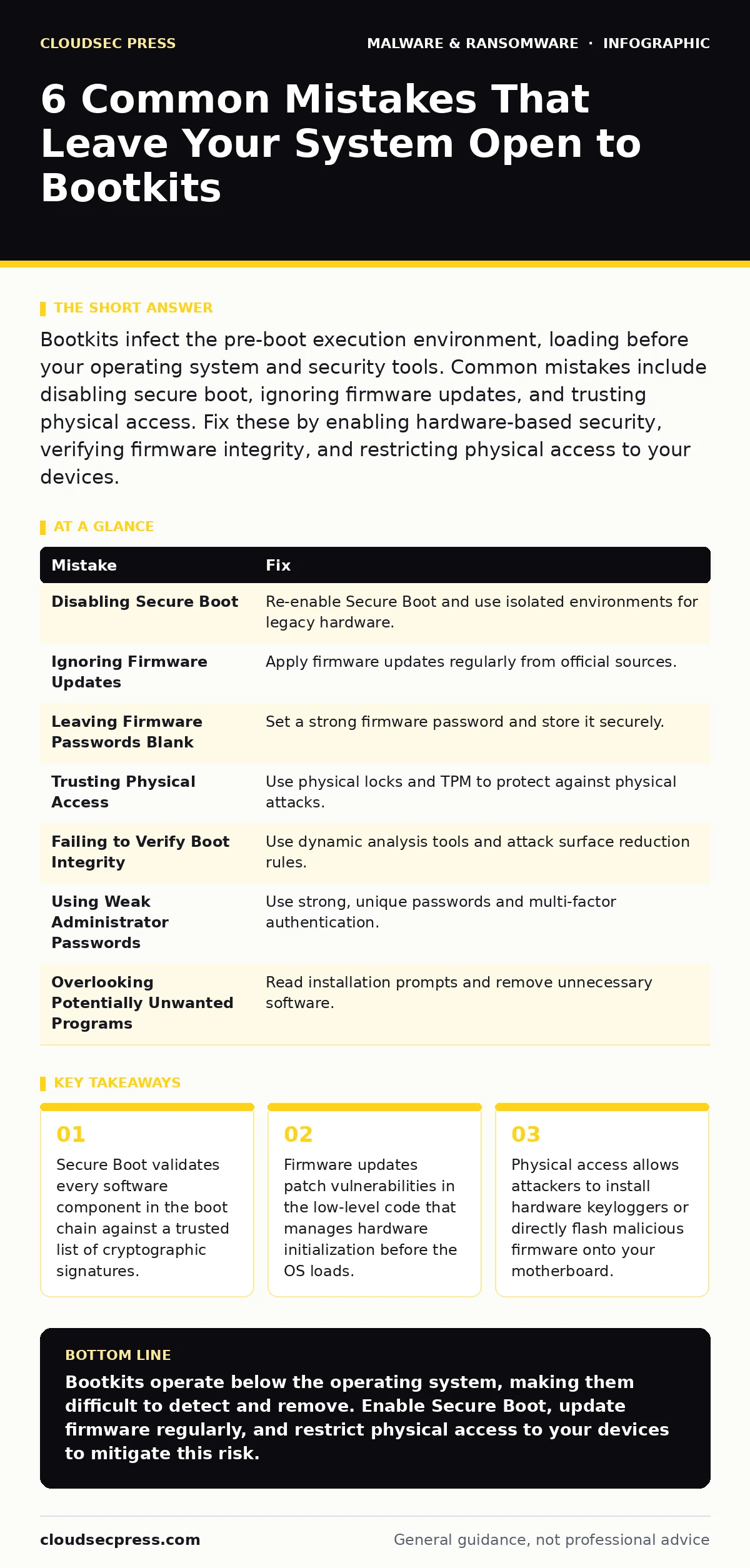
| Mistake | Fix |
|---|---|
| Disabling Secure Boot | Re-enable Secure Boot and use isolated environments for legacy hardware. |
| Ignoring Firmware Updates | Apply firmware updates regularly from official sources. |
| Leaving Firmware Passwords Blank | Set a strong firmware password and store it securely. |
| Trusting Physical Access | Use physical locks and TPM to protect against physical attacks. |
| Failing to Verify Boot Integrity | Use dynamic analysis tools and attack surface reduction rules. |
| Using Weak Administrator Passwords | Use strong, unique passwords and multi-factor authentication. |
| Overlooking Potentially Unwanted Programs | Read installation prompts and remove unnecessary software. |
Key takeaways
- Secure Boot validates every software component in the boot chain against a trusted list of cryptographic signatures.
- Firmware updates patch vulnerabilities in the low-level code that manages hardware initialization before the OS loads.
- Physical access allows attackers to install hardware keyloggers or directly flash malicious firmware onto your motherboard.
Bootkits operate below the operating system, making them difficult to detect and remove. Enable Secure Boot, update firmware regularly, and restrict physical access to your devices to mitigate this risk.
Frequently asked questions
Can antivirus software detect bootkits?
Standard antivirus software often cannot detect bootkits because they load before the operating system and security software. Specialized tools that analyze the boot process are required for effective detection.
How do I know if my system has a bootkit?
Signs include unusual boot times, unexpected system reboots, and security software failing to start. Use specialized bootkit scanners and review system logs for anomalies during startup to identify potential infections.
Is Secure Boot enough to protect against bootkits?
Secure Boot is a strong defense but not absolute. It prevents unsigned code from loading, but attackers may find ways to exploit vulnerabilities in the firmware or use physical access to bypass it. Combine it with other security measures for comprehensive protection.
What is the difference between a bootkit and rootkit?
A bootkit infects the boot process, loading before the operating system. A rootkit hides within the operating system after it has loaded. Both provide hidden access, but bootkits are more persistent and difficult to remove as they operate at a lower level.
How this guide was produced: written by the CloudSec Press editorial team with AI assistance, checked against the public references listed below, and reviewed when the facts change. See our editorial policy or report an error.