Patch Testing Protocol: Validate Updates Before Deployment
Most deployment failures stem from configuration drift rather than code bugs, meaning your test environment must mirror production settings exactly.

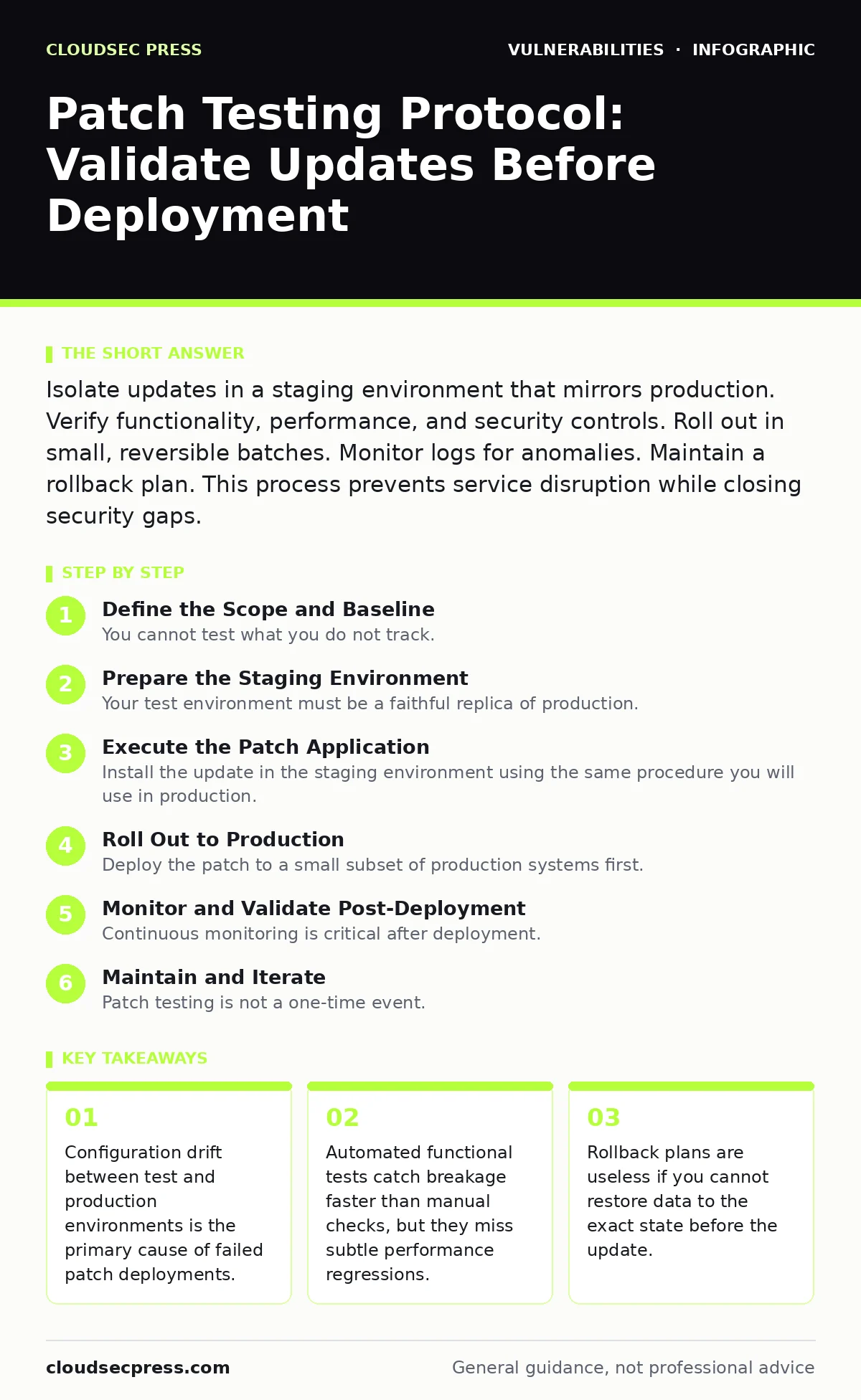
Isolate updates in a staging environment that mirrors production. Verify functionality, performance, and security controls. Roll out in small, reversible batches. Monitor logs for anomalies. Maintain a rollback plan. This process prevents service disruption while closing security gaps.
Define the Scope and Baseline
You cannot test what you do not track. Begin by identifying which systems require the update. This requires a current IT asset inventory that lists operating systems, application versions, and dependencies. If an asset is missing from your records, it is not ready for patching.
Establish a baseline of normal behavior before applying any changes. Capture metrics for CPU usage, memory consumption, and network latency. Record the status of critical services and user access patterns. This baseline allows you to detect subtle regressions that automated tools might miss.
Prepare the Staging Environment
Your test environment must be a faithful replica of production. This includes hardware specifications, network topology, and security policies. Many organizations fail here by using lightweight virtual machines for testing. These machines do not reflect the resource constraints of physical servers or large-scale cloud instances.
Apply the same configuration hardening standards to the test environment as you do to production. If production servers run with minimal services enabled, the test servers must do the same. Differences in background processes can mask conflicts or trigger false positives during validation.
Execute the Patch Application
Install the update in the staging environment using the same procedure you will use in production. Do not use manual overrides or special permissions for the test. The goal is to validate the deployment script or process, not just the patch itself.
Document every step taken during installation. Note any warnings, errors, or unexpected prompts. These details often reveal dependency issues that only appear during execution. If the installation fails, analyze the logs before attempting a retry. Repeated failures without analysis waste time and obscure the root cause.
Step 1: Verify Installation Integrity
Confirm that the patch installed correctly. Check version numbers and file hashes. Ensure that no residual files from previous versions remain. A clean installation prevents conflicts with future updates.
- Verify the new version number matches the release notes.
- Confirm file integrity checks pass.
- Ensure no temporary installation files remain on the disk.
Step 2: Validate Functional Stability
Run your standard functional tests. These tests should cover core business workflows. Do not rely solely on smoke tests that check if the service is up. You need to verify that data flows correctly between components.
Check for regression in features that interact with the patched component. For example, if you patched a database driver, test application queries that rely on that driver. Look for changes in query performance or error handling.
Step 3: Assess Security Posture
Verify that the update does not introduce new vulnerabilities. Check for changes in default permissions or exposed endpoints. Ensure that security bulletins associated with the patch are addressed.
Review the software bill of materials (SBOM) if available. This document lists all components within the software. Compare it against known vulnerability databases to ensure the update does not reintroduce older issues. Be aware that n-day vulnerabilities may exist in dependencies, even if the main component is secure.
Step 4: Confirm Rollback Capability
Test the rollback procedure. Restore the system to its pre-patch state using your backup or snapshot. Verify that data is consistent and services resume normal operation. A rollback plan is only valid if you have tested it.
- Restore system from snapshot or backup.
- Verify data integrity after restoration.
- Confirm services start without manual intervention.
Roll Out to Production
Deploy the patch to a small subset of production systems first. This pilot group should be representative of your broader infrastructure but limited in scope. Monitor this group closely for twenty-four to forty-eight hours.
If the pilot group shows no issues, expand the rollout to additional segments. Use a phased approach rather than a big-bang deployment. This allows you to isolate problems to specific batches. If an issue arises, you can halt the rollout and roll back only the affected batch.
Monitor and Validate Post-Deployment
Continuous monitoring is critical after deployment. Watch for spikes in error rates, latency, or resource usage. Compare these metrics against the baseline you established earlier. Small deviations can indicate underlying problems that will worsen over time.
Check application logs for new error messages. Look for warnings that were not present before the patch. Investigate any anomalies immediately. Do not wait for users to report issues. Proactive detection prevents minor glitches from becoming major outages.
See also: Security Bulletins Explained: Meaning, Purpose, and Daily Use
Maintain and Iterate
Patch testing is not a one-time event. It is a continuous process. Update your test procedures as your infrastructure changes. Incorporate lessons learned from each deployment into your vulnerability management programs.
Regularly review your rollback procedures. Technology changes, and so do your systems. A rollback plan that worked last year may fail today. Test it periodically to ensure it remains valid.
Handle End-of-Life Scenarios
Be aware of end-of-life software in your environment. Patches for these systems may not be available or may introduce instability. Prioritize replacing these systems rather than patching them.
If replacement is not immediately possible, isolate these systems from the network. Use compensating controls to mitigate risk. Document the risks and ensure stakeholders understand the exposure.
Key takeaways
- Configuration drift between test and production environments is the primary cause of failed patch deployments.
- Automated functional tests catch breakage faster than manual checks, but they miss subtle performance regressions.
- Rollback plans are useless if you cannot restore data to the exact state before the update.
Frequently asked questions
How long should I wait before rolling out a patch to production?
Wait at least twenty-four to forty-eight hours after successful staging. This allows time for latent issues to surface and for monitoring systems to detect anomalies.
Can I skip testing for minor security patches?
No. Minor patches can still alter system behavior or dependencies. Always test in a staging environment that mirrors production to avoid unexpected disruptions.
What if my staging environment cannot perfectly mirror production?
Focus on matching configuration and security policies. Use containerization or virtualization to standardize environments. Document any differences and adjust your testing scope accordingly.
How do I handle patches for third-party applications?
Test them in the same manner as internal software. Verify compatibility with your existing infrastructure and security controls. Check the vendor’s documentation for specific testing recommendations.
How this guide was produced: written by the CloudSec Press editorial team with AI assistance, checked against the public references listed below, and reviewed when the facts change. See our editorial policy or report an error.